What Are DMARC Reports?
DMARC Reports are feedback documents sent by receiving mail servers that tell you what happened to emails claiming to be from your domain. They're the visibility mechanism that makes DMARC actionable—without reports, you'd be flying blind.
Understanding DMARC Reports
When you publish a DMARC record with a reporting address, receiving mail servers send you detailed information about emails they receive. If you haven't set up reporting yet, use our DMARC generator to create a record with proper RUA/RUF addresses. There are two types of reports:
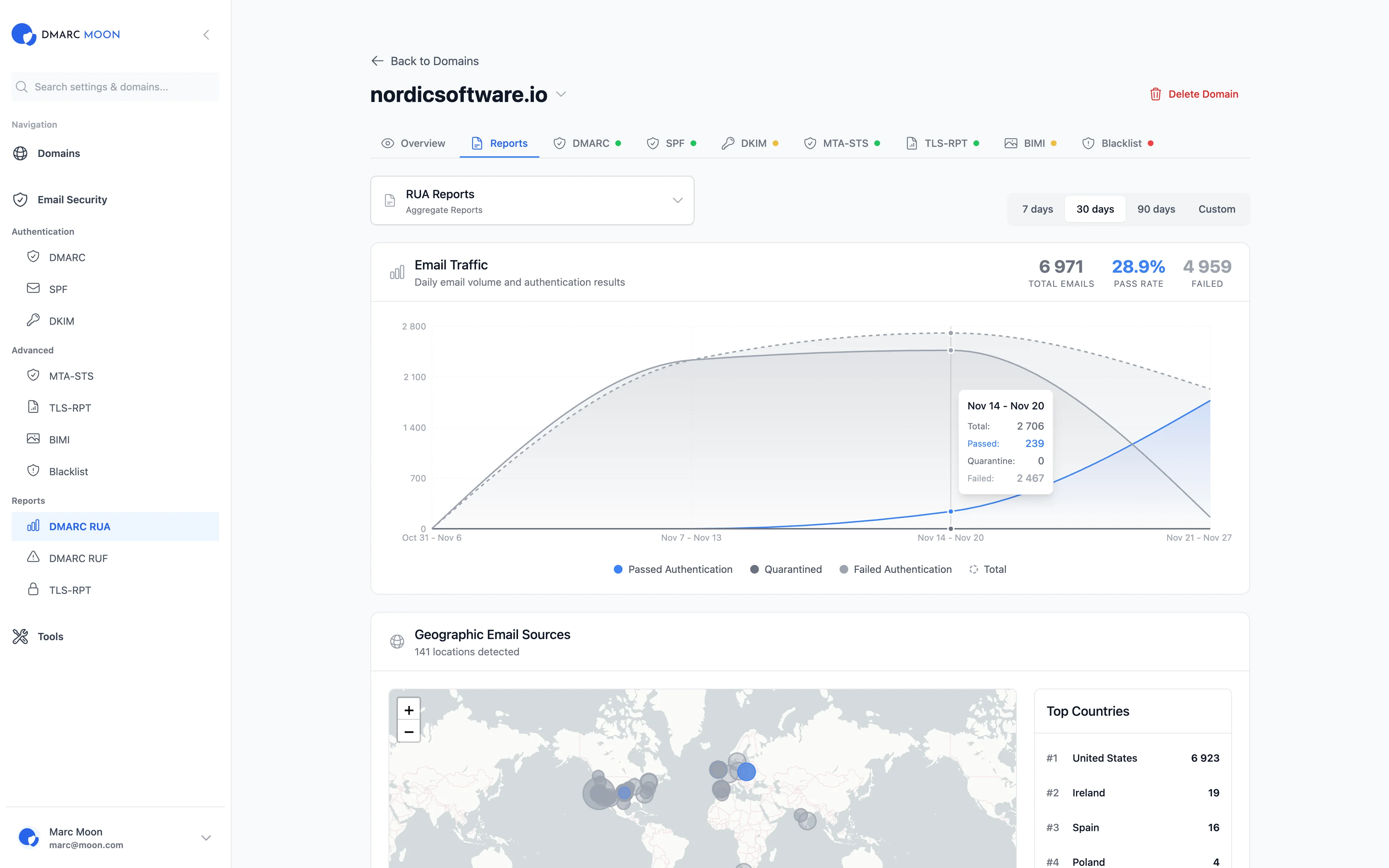
1. Aggregate Reports (RUA)
- Format: XML files, often compressed (gzip or zip)
- Frequency: Typically sent daily (can vary by provider)
- Content: Statistical summary of email authentication results
- Purpose: Understand your email ecosystem and authentication health
2. Forensic Reports (RUF)
- Format: Individual email messages with full headers
- Frequency: Sent per failure (when enabled)
- Content: Detailed information about specific emails that failed
- Limitation: Many providers (Gmail, Microsoft) no longer send RUF reports due to privacy concerns
What Aggregate Reports Contain
Each aggregate report includes several key sections:
Report Metadata
<report_metadata>
  <org_name>google.com</org_name>
  <email>[email protected]</email>
  <report_id>12345678901234567890</report_id>
  <date_range>
    <begin>1704067200</begin>
    <end>1704153599</end>
  </date_range>
</report_metadata>- org_name: Who sent the report (the receiving mail provider)
- report_id: Unique identifier for this report
- date_range: The time period covered (Unix timestamps)
Policy Published
<policy_published>
  <domain>yourdomain.com</domain>
  <adkim>r</adkim>
  <aspf>r</aspf>
  <p>quarantine</p>
  <sp>quarantine</sp>
  <pct>100</pct>
</policy_published>- domain: Your domain being reported on
- p: Your DMARC policy (none, quarantine, reject)
- adkim/aspf: Alignment modes (r=relaxed, s=strict)
- pct: Percentage of mail subject to policy
Record (The Important Part)
<record>
  <row>
    <source_ip>203.0.113.45</source_ip>
    <count>1523</count>
    <policy_evaluated>
      <disposition>none</disposition>
      <dkim>pass</dkim>
      <spf>pass</spf>
    </policy_evaluated>
  </row>
  <identifiers>
    <header_from>yourdomain.com</header_from>
  </identifiers>
  <auth_results>
    <dkim>
      <domain>yourdomain.com</domain>
      <result>pass</result>
      <selector>default</selector>
    </dkim>
    <spf>
      <domain>yourdomain.com</domain>
      <result>pass</result>
    </spf>
  </auth_results>
</record>- source_ip: IP address that sent the email
- count: Number of emails from this IP
- disposition: What action was taken (none, quarantine, reject)
- dkim/spf: Authentication results and alignment status
Common Issues Found in Reports
Legitimate Emails Failing Authentication
This is the most critical issue to identify. When legitimate email sources fail DMARC:
Scenario: You see failures from an IP address you recognize as your marketing platform.
- Source IP: Your marketing platform's IP
- SPF Result: Fail
- DKIM Result: Fail
The Problem: The marketing platform isn't properly configured with SPF or DKIM for your domain.
Solution:
- Add the platform's IP range or include statement to your SPF record—use our SPF generator to create the correct record
- Configure custom DKIM signing with your domain through the platform—verify with our DKIM lookup tool
- Verify alignment (custom return-path domain if needed)
Unknown Sending Sources
Reports reveal IP addresses you don't recognize sending email as your domain.
Scenario: You see email volume from IP addresses not in your inventory.
- Source IP: Unknown
- Volume: Varies (could be low or high)
- Authentication: Usually failing
Investigation Steps:
- Perform reverse DNS lookup on the IP
- Check IP geolocation
- Ask your teams if anyone knows this service
- Determine if it's a forgotten legitimate service or malicious activity
If legitimate: Configure proper authentication. If malicious: Your DMARC policy is protecting you—consider enforcing if you haven't already. You can also check if the IP is on any email blacklists.
SPF Alignment Failures
SPF passes but alignment fails—this is common with third-party senders.
Scenario: Email authenticated via SPF, but DMARC still fails.
- SPF Result: Pass
- SPF Alignment: Fail
- DKIM: Not configured or failing
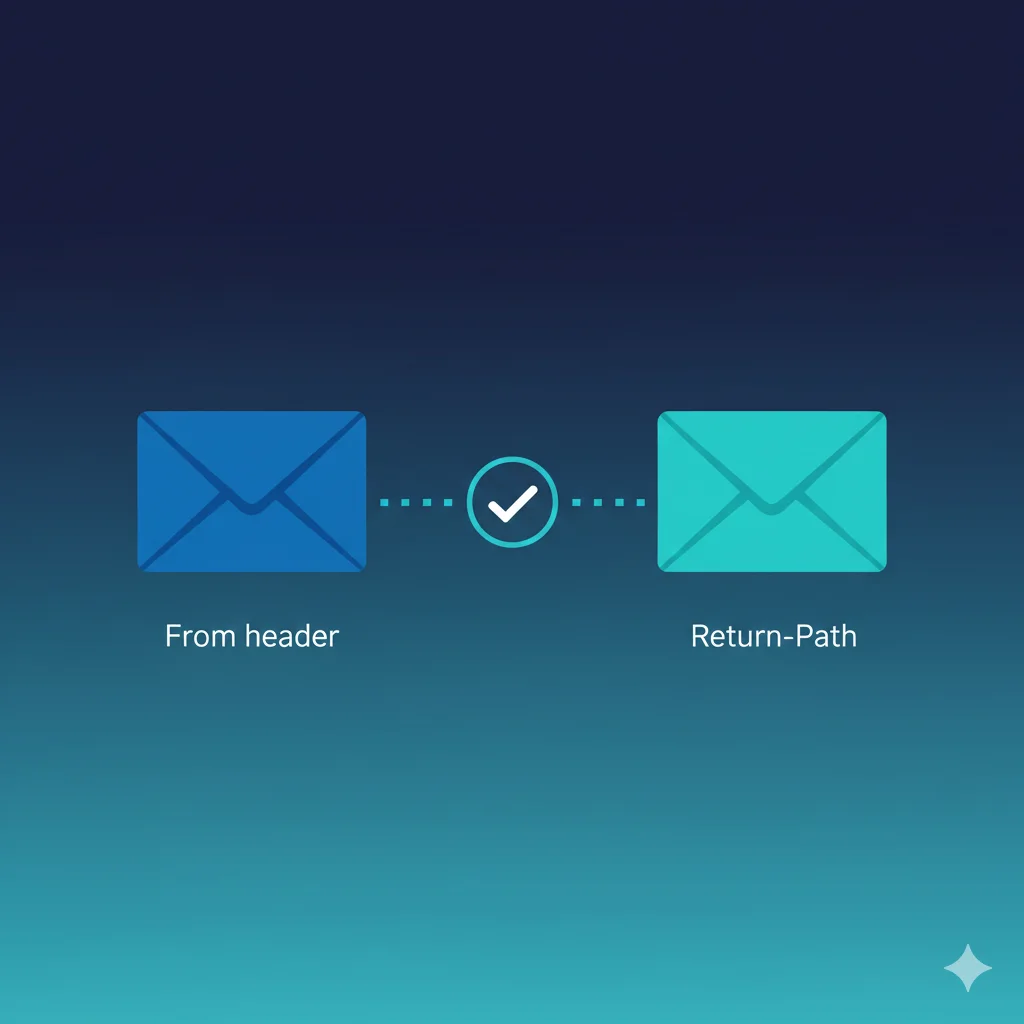
The Problem: The SPF-authenticated domain (return-path) doesn't match the From header domain.
Solution: Configure a custom return-path domain (subdomain of your domain) or ensure DKIM is properly aligned as a backup. Check your current SPF configuration with our SPF lookup tool.
For a deeper dive, see our SPF alignment guide.
Forwarding Issues
Email forwarding inherently breaks SPF because the forwarding server's IP isn't in your SPF record.
Scenario: You see SPF failures from IP addresses that look like other organizations' mail servers.
- SPF Result: Fail
- DKIM Result: May pass (if email wasn't modified) or fail
Understanding: This is expected behavior. When someone forwards your email, SPF will fail because the forwarding server isn't authorized in your SPF record. DKIM should still pass if the email wasn't modified.
What to do: This is why DMARC uses "OR" logic. Ensure DKIM is properly configured as a fallback for forwarded email.
Key Metrics to Monitor
Pass Rate
Calculate your overall DMARC pass rate:
Pass Rate = (Emails Passing DMARC / Total Emails) × 100%- Target: 95%+ for legitimate email sources
- Action: Investigate any source with pass rate below 95%
Authentication Results by Source
Group report data by sending IP to identify:
- Legitimate senders with authentication issues
- Unknown sources that need investigation
- Third-party services needing configuration
Policy Actions
Track what actions receiving servers took:
none— Email delivered normally (monitoring mode)quarantine— Email sent to spam/junkreject— Email blocked
Volume Trends
Monitor email volume over time to detect:
- Unusual spikes (potential spoofing attacks)
- Gradual increases (new services or campaigns)
- Sudden drops (deliverability issues)
Building an Analysis Workflow
Follow this workflow for effective report analysis:
Step 1: Collect and Aggregate
Set up a system to collect DMARC reports. Manual processing of XML files doesn't scale—use a DMARC monitoring platform like DMARC Moon.
Step 2: Identify Your Senders
Build an inventory of all legitimate email sources:
- Your main mail server(s)
- Marketing platforms
- Transactional email services
- CRM systems
- Support ticketing systems
- Internal applications
Step 3: Investigate Failures
For each failing source, answer:
- Is this a legitimate sender?
- Why is authentication failing?
- What action is needed to fix it?
Step 4: Fix Authentication Issues
Common fixes include:
- Adding IP ranges to SPF records
- Configuring DKIM signing for third-party services
- Setting up custom return-path domains
- Working with vendors on authentication support
Step 5: Progress Your Policy
Use report insights to safely increase enforcement:
- Pass rate consistently above 95%? Move from
p=nonetop=quarantine - Pass rate above 99%? Move from
p=quarantinetop=reject
For detailed guidance on policy progression, see our DMARC policies guide.
FAQ
How often should I review DMARC reports?
Review frequency depends on your situation:
- Initial setup (p=none): Review weekly to discover all email sources
- During policy progression: Review every few days to catch issues quickly
- Stable enforcement (p=reject): Review monthly or set up alerts for anomalies
Use automated monitoring tools to alert you to sudden changes so you don't have to check manually every day.
Why am I receiving reports from providers I don't send email to?
This is normal. When someone spoofs your domain (sends fake emails pretending to be from you), those emails may be received by users at various providers. Those providers then send you DMARC reports about the failed authentication.
This is actually valuable information—it shows you attempted abuse of your domain and confirms your DMARC policy is protecting against spoofing.
What does it mean when SPF passes but alignment fails?
This means the email was sent from an authorized server (SPF passed), but the domain used for SPF authentication doesn't match the From header domain.
Example:
- From header:
[email protected] - Return-Path:
[email protected] - SPF: Passed (for thirdparty.com)
- Alignment: Failed (thirdparty.com ≠ yourdomain.com)
To fix this, configure a custom return-path domain (like bounces.yourdomain.com) with your third-party sender.
How do I identify which service is sending from a specific IP?
Several techniques help identify unknown IPs:
- Reverse DNS lookup: Often reveals the service name
- IP geolocation: Shows the general location and hosting provider
- WHOIS lookup: Shows who owns the IP block
- Ask your team: Someone may recognize the service
- Check email headers: If you have forensic reports, headers provide context
Why don't I receive forensic (RUF) reports?
Many large mailbox providers (including Gmail and Microsoft) have stopped sending forensic reports due to privacy concerns. The reports contain email content and headers, which could expose personal information.
Don't rely solely on RUF reports. Aggregate reports (RUA) provide sufficient data for most DMARC analysis and policy decisions.
How do I handle high-volume reports?
Large organizations can receive thousands of DMARC reports daily. To handle this:
- Use a dedicated DMARC monitoring platform (not a general email inbox)
- Aggregate data across reports rather than reading each one
- Focus on trends and anomalies rather than individual emails
- Set up automated alerts for significant changes
What's a good DMARC pass rate before enforcing?
Before moving from p=none to p=quarantine:
- Target: 95%+ pass rate for legitimate sources
- All known email services should be identified and configured
- No critical authentication gaps remaining
Before moving from p=quarantine to p=reject:
- Target: 99%+ pass rate
- No legitimate email being quarantined
- Confidence in complete sender inventory
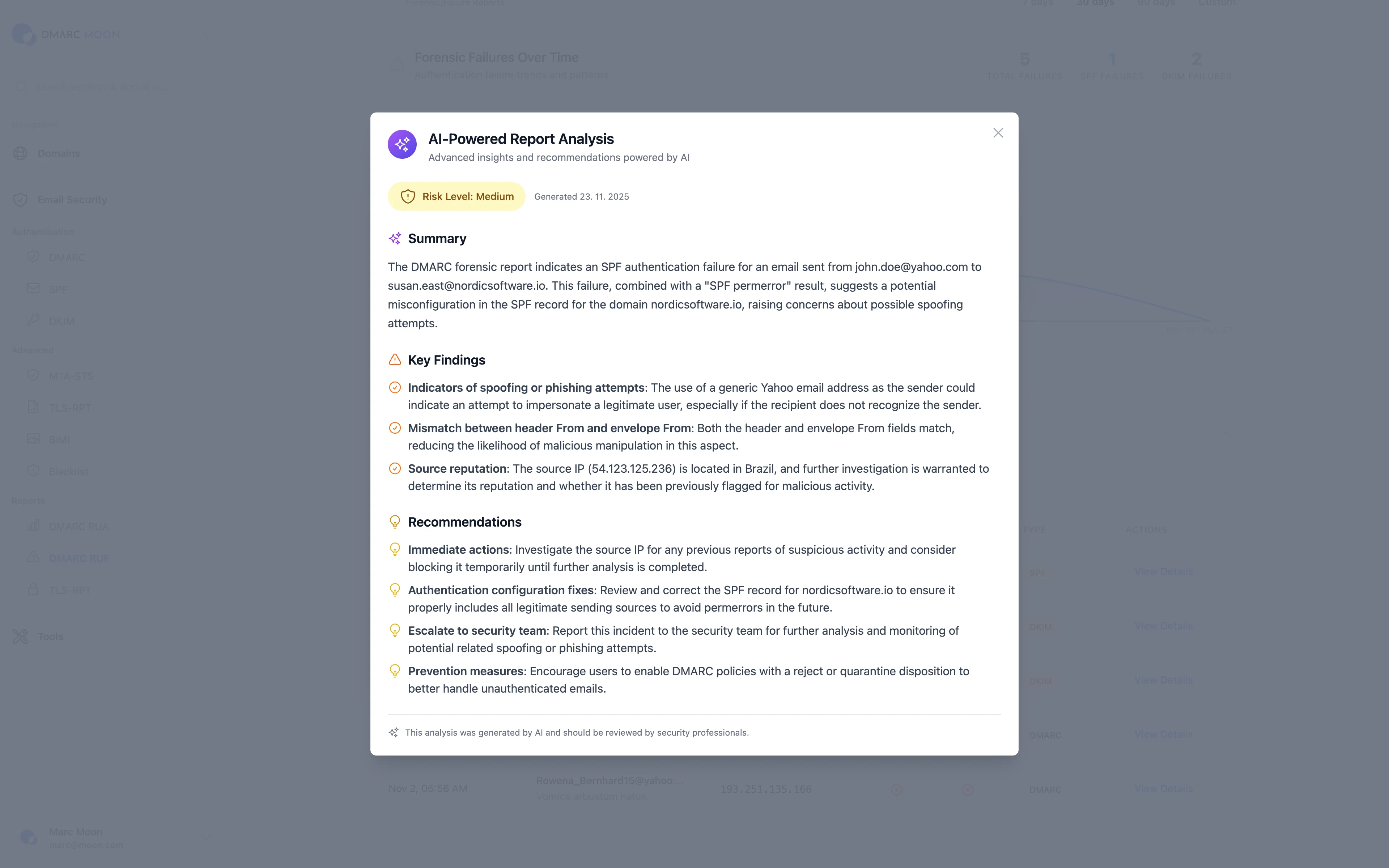
Can I use AI to analyze my DMARC reports?
Yes. Modern DMARC monitoring platforms like DMARC Moon use AI to:
- Identify patterns humans might miss
- Prioritize issues by impact and risk
- Suggest specific remediation steps
- Detect spoofing and phishing attempts
- Predict trends based on historical data
AI analysis is particularly valuable when dealing with high report volumes or complex email ecosystems.
Ready to Analyze Your DMARC Reports?
DMARC Moon makes DMARC report analysis simple and actionable:
- Automatic report collection and parsing
- Visual dashboards for easy understanding
- AI-powered analysis and recommendations
- Alerts for authentication issues
- Historical trend tracking