What Is DKIM?
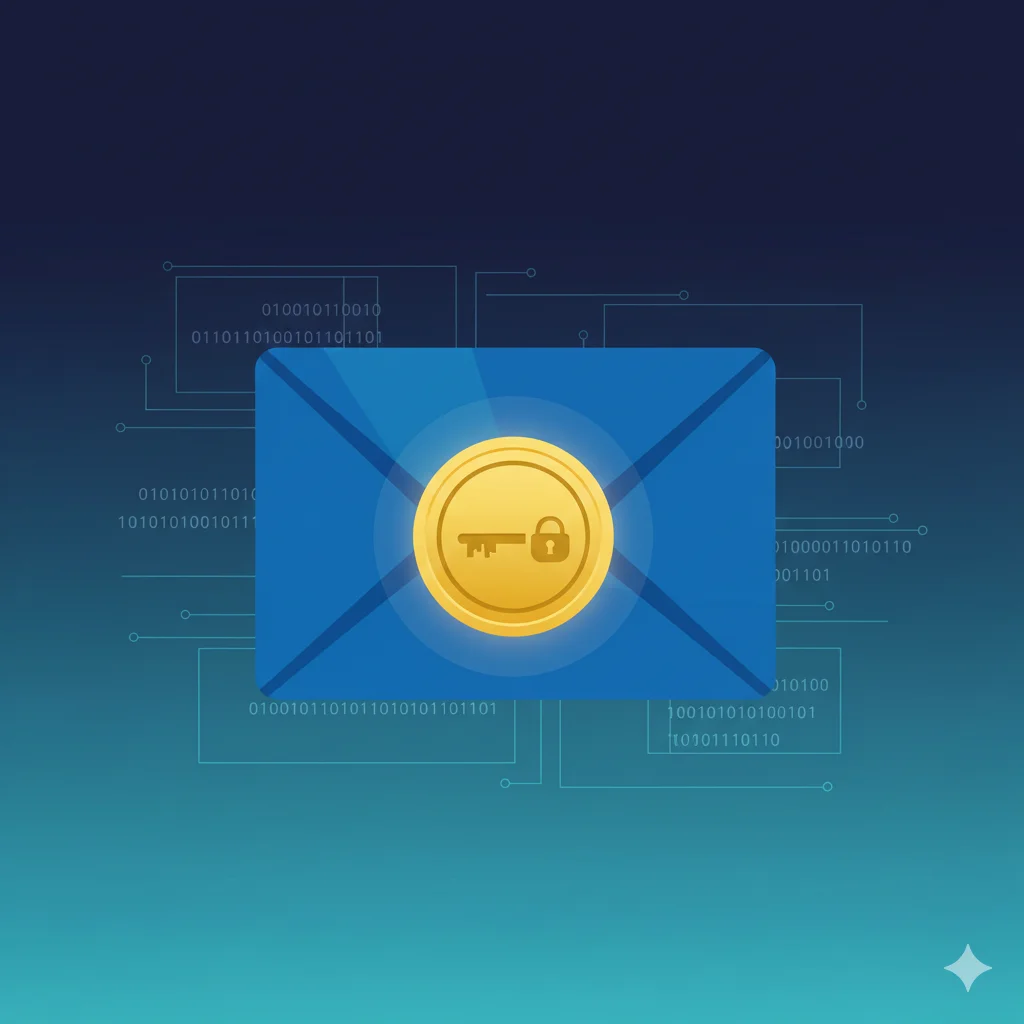
DKIM (DomainKeys Identified Mail) is an email authentication method that allows the receiving server to verify that an email was actually sent by the domain it claims to be from and that the message hasn't been tampered with during transit. It works by adding a cryptographic digital signature to every outgoing email.
Understanding DKIM
To understand DKIM, you need to look at how email signing works:
1. The Private Key (Signing Key)
- Location: Stored securely on your mail server
- Purpose: Creates a unique digital signature for each outgoing email
- Security: Must never be shared or exposed publicly
2. The Public Key (Verification Key)
- Location: Published in your DNS as a TXT record at
selector._domainkey.yourdomain.com - Purpose: Allows receiving servers to verify the signature
- Access: Publicly available for anyone to query
3. The Selector
- Location: Part of the DNS record name and included in the email signature
- Purpose: Allows multiple DKIM keys for the same domain (different services, key rotation)
- Examples:
default,google,mailchimp,s1,2024q1
The DKIM Verification Process
When an email arrives at a receiving server:
- Extract signature: Server reads the DKIM-Signature header from the email
- Find public key: Server queries DNS for the public key using the selector and domain
- Verify signature: Server uses the public key to verify the signature matches the email content
- Pass or fail: If verification succeeds, DKIM passes; if not, DKIM fails
Why DKIM Matters for DMARC
DKIM is one of the two authentication mechanisms DMARC relies on (the other is SPF). For an email to pass DMARC via DKIM:
- The DKIM signature must verify successfully
- The domain in the DKIM signature (
d=tag) must align with the From header domain
To learn more about alignment, check out our SPF alignment guide—the concepts apply similarly to DKIM. You can also run a complete domain check to see how all your email authentication protocols are configured.
Common Issues with DKIM
Key Not Found in DNS
This is one of the most common DKIM failures. The receiving server can't find your public key.
Scenario: You configure DKIM on your mail server with selector default.
- Email DKIM-Signature:
s=default; d=yourdomain.com - DNS Query:
default._domainkey.yourdomain.com
The Problem: The DNS record doesn't exist or has a typo in the record name. Use our DKIM lookup tool to verify the record is correctly published.
Result: DKIM verification fails because the public key can't be retrieved.
Message Modified in Transit
DKIM signatures cover specific parts of the email. If those parts change, the signature becomes invalid.
Scenario: Your email passes through a mailing list or forwarding server.
- Original email: Signed with DKIM
- Forwarding server: Adds a footer or modifies headers
The Problem: The modification invalidates the original DKIM signature.
Result: DKIM fails at the final destination, even though the original email was properly signed.
Third-Party Services Not Configured
Every service that sends email on your behalf needs its own DKIM configuration.
Scenario: You set up DKIM for your main mail server but forget about your marketing platform.
- Main mail server: DKIM configured and working
- Marketing platform: No DKIM signing configured
The Problem: Marketing emails either have no DKIM signature or are signed with the platform's domain (not yours).
Solution: Configure custom DKIM signing for each third-party service using your domain.
Weak or Expired Keys
Using outdated key sizes or failing to rotate keys creates security vulnerabilities.
The Problem: 1024-bit keys are increasingly considered weak. Some receiving servers may treat them with suspicion or reject them.
Solution: Use 2048-bit keys minimum, and implement a key rotation schedule.
How to Implement DKIM Correctly
There are 5 main steps to implement DKIM:
- Generate a key pair (public and private)
- Choose a selector name
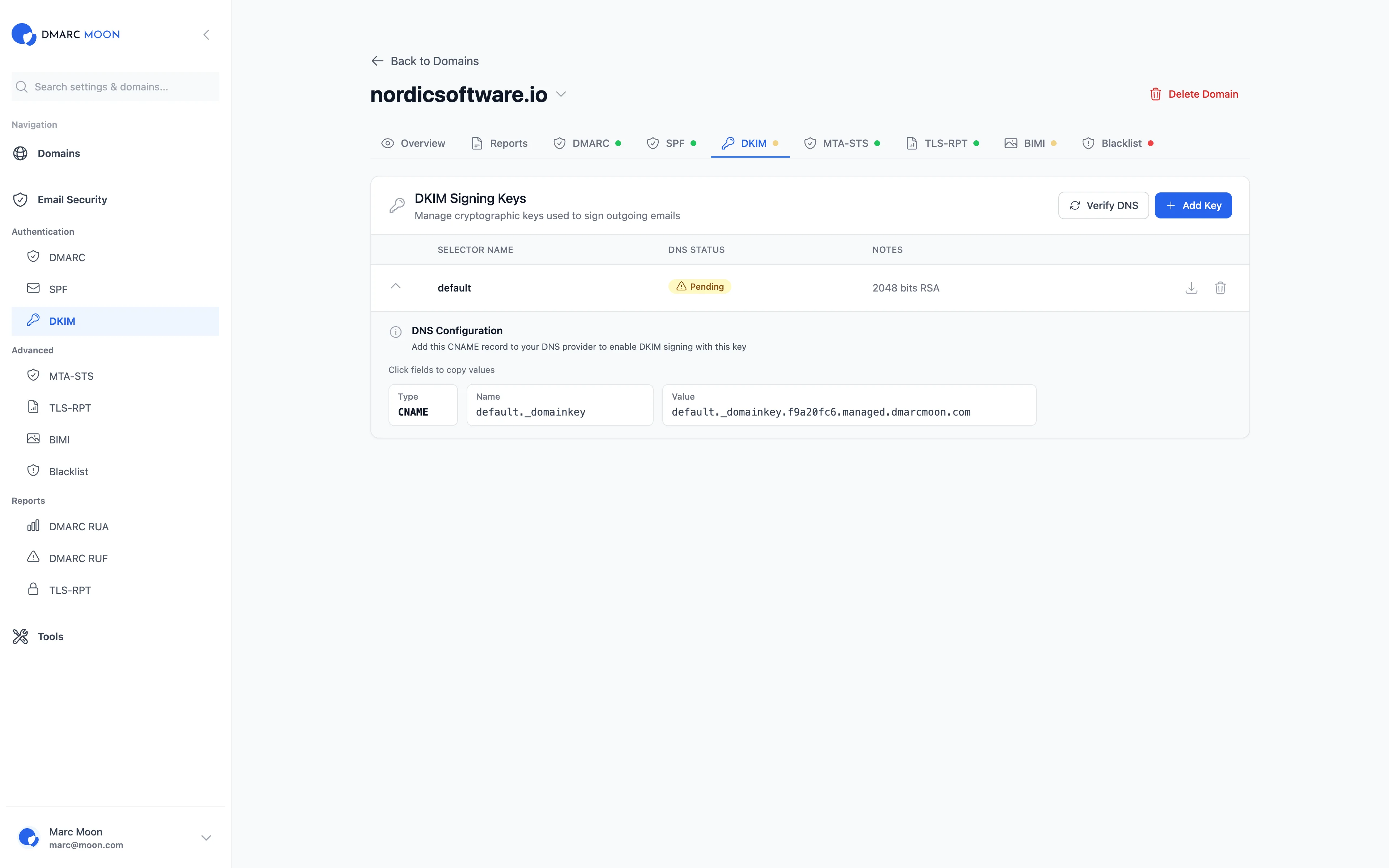
- Publish the public key in DNS
- Configure your mail server to sign emails
- Test and verify the implementation
Step 1: Generate Your DKIM Keys
Most email providers and mail servers can generate DKIM keys for you. You can also use our free DKIM generator tool to create properly formatted keys. If you need to generate them manually:
# Generate a 2048-bit RSA key pair
openssl genrsa -out dkim_private.pem 2048
openssl rsa -in dkim_private.pem -pubout -out dkim_public.pem
Key length recommendations:
- 2048-bit: Minimum recommended for all new implementations
- 4096-bit: For organizations requiring extra security or future-proofing
- 1024-bit: Legacy only—avoid for new setups
Step 2: Choose Your Selector
A selector allows you to have multiple DKIM keys. Common naming conventions:
default— For your primary mail servergoogleorgapps— For Google Workspacemailchimp— For Mailchimp emailss1,s2— For key rotation2024q1— Date-based for rotation tracking
Step 3: Publish Your DNS Record
Create a TXT record at selector._domainkey.yourdomain.com:
v=DKIM1; k=rsa; p=MIIBIjANBgkqhki...your_public_key...Record format explained:
v=DKIM1— DKIM version (required)k=rsa— Key type (rsa is default, can be omitted)p=— The public key in base64 (required)t=s— Optional: strict mode (subdomains won't match)t=y— Optional: testing mode
Step 4: Configure Your Mail Server
Configuration varies by platform. Here are common examples:
Postfix with OpenDKIM:
# /etc/opendkim.conf
Domain                  yourdomain.com
KeyFile                 /etc/opendkim/keys/yourdomain.com/default.private
Selector                default
Microsoft 365: Enable DKIM through Microsoft 365 Defender portal under Email Authentication settings.
Google Workspace: Navigate to Admin Console > Apps > Google Workspace > Gmail > Authenticate email.
Step 5: Test Your Configuration
Use our free DKIM lookup tool to verify your setup. You can also send a test email and examine the headers:
DKIM-Signature: v=1; a=rsa-sha256; c=relaxed/relaxed;
  d=yourdomain.com; s=default;
  h=from:to:subject:date:message-id;
  bh=abc123...;
  b=xyz789...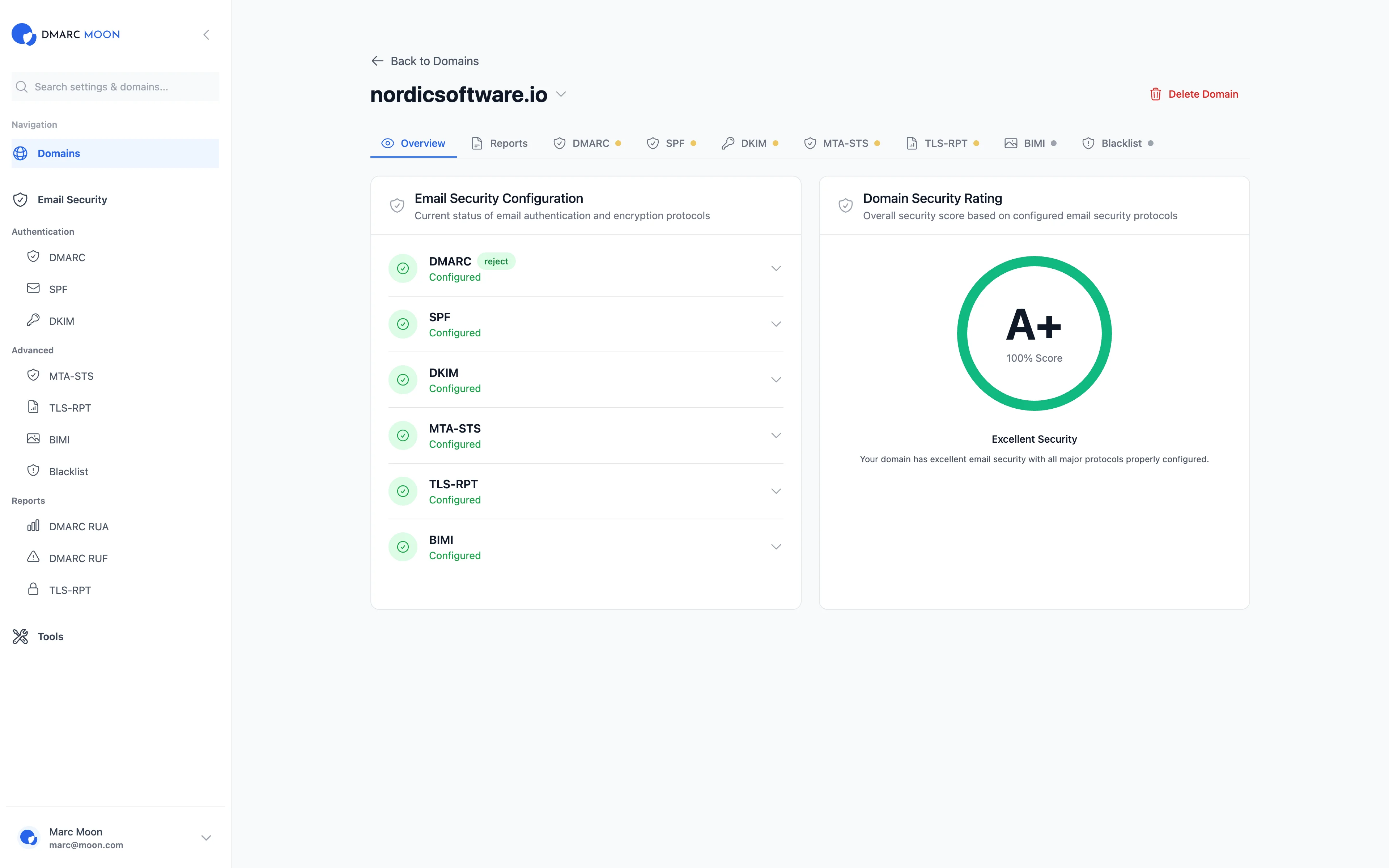
DKIM Best Practices for 2025
Use 2048-bit Keys Minimum
While 1024-bit keys are still technically valid, major email providers now recommend or require 2048-bit keys. Some enterprise environments are moving to 4096-bit for future-proofing.
Implement Key Rotation
Rotate your DKIM keys periodically (every 6-12 months):
- Generate a new key pair with a new selector
- Publish the new public key in DNS
- Wait for DNS propagation (24-48 hours)
- Configure your mail server to use the new key
- Keep the old key active for 7-14 days
- Remove the old DNS record
Sign All Outgoing Email
Ensure every email source is configured with DKIM:
- Primary mail server
- Marketing platforms (Mailchimp, HubSpot)
- Transactional email services (SendGrid, SES)
- CRM systems (Salesforce, Zendesk)
- Internal applications
Use Relaxed Canonicalization
The c= tag specifies how headers and body are normalized before signing:
c=relaxed/relaxed— Most forgiving, recommended for compatibilityc=simple/simple— Strictest, may cause issues with forwardingc=relaxed/simple— Relaxed headers, strict body
Protect Your Private Keys
- Store private keys securely with restricted file permissions
- Never share private keys across different systems
- Use separate keys for different email services
- Have a key compromise response plan
FAQ
How can I check if my DKIM is working correctly?
There are several ways to verify your DKIM implementation:
- DNS lookup: Use our DKIM lookup tool to check if your public key is properly published
- Send a test email: Send an email to yourself and examine the email headers for DKIM-Signature and authentication results
- DMARC reports: Monitor your DMARC aggregate reports to see DKIM pass/fail rates across all your email sources
Why is my DKIM failing even though I configured it?
Common reasons for DKIM failures after configuration:
- DNS propagation: New records can take 24-48 hours to propagate globally
- Selector mismatch: The selector in your email signature doesn't match the DNS record name
- Key format issues: The public key in DNS has formatting problems (line breaks, missing characters)
- Message modification: Something (mailing list, forwarding server, security gateway) is modifying the email after signing
Do I need DKIM for each third-party service?
Yes. Each service that sends email on your behalf should have DKIM configured with your domain. Most reputable email service providers support custom DKIM signing—look for options to set up "custom domain authentication" or "branded sending."
Without custom DKIM, the service will either not sign emails or sign with their own domain, which won't help with DMARC alignment.
What's the difference between strict and relaxed DKIM alignment?
This is controlled in your DMARC record using the adkim tag:
Strict (adkim=s):
- DKIM domain must exactly match From header domain
d=yourdomain.commatchesFrom: [email protected]d=mail.yourdomain.comdoes NOT matchFrom: [email protected]
Relaxed (adkim=r):
- DKIM domain must share the same organizational domain
d=mail.yourdomain.commatchesFrom: [email protected]- This is the default if not specified
How often should I rotate my DKIM keys?
Best practice is to rotate DKIM keys every 6-12 months. Key rotation:
- Limits the impact if a key is compromised
- Ensures you're using current cryptographic standards
- Keeps your implementation processes documented and tested
Some high-security organizations rotate keys quarterly, while others with lower risk profiles may extend to annual rotation.
Why do I see DKIM failures for forwarded emails?
Email forwarding is a known challenge for DKIM. When an email is forwarded:
- The forwarding server may modify headers or body content
- These modifications invalidate the original DKIM signature
- The email arrives at the final destination with a broken signature
This is why DMARC uses an "OR" logic—if either SPF OR DKIM passes and aligns, DMARC passes. For forwarded emails, having both authentication methods configured provides redundancy.
Can I have multiple DKIM keys for the same domain?
Yes. This is exactly what selectors are for. You can have different DKIM keys for:
- Different mail servers or services
- Key rotation (old and new keys active simultaneously during transition)
- Different security requirements
Each key uses a different selector, so they don't conflict.
What happens if my DKIM private key is compromised?
If your private key is exposed or compromised:
- Immediately generate a new key pair with a new selector
- Publish the new public key in DNS
- Update your mail server to use the new key
- Remove the compromised public key from DNS (this prevents the compromised key from being used)
- Investigate how the key was exposed and prevent recurrence
Ready to Implement DKIM?
DMARC Moon helps you implement and monitor DKIM effectively:
- Generate DKIM keys with our DKIM generator tool
- Verify your setup with our DKIM lookup tool
- Monitor DKIM alignment through DMARC reports
- Get alerts when DKIM issues are detected